File system diagnostics/for Mac
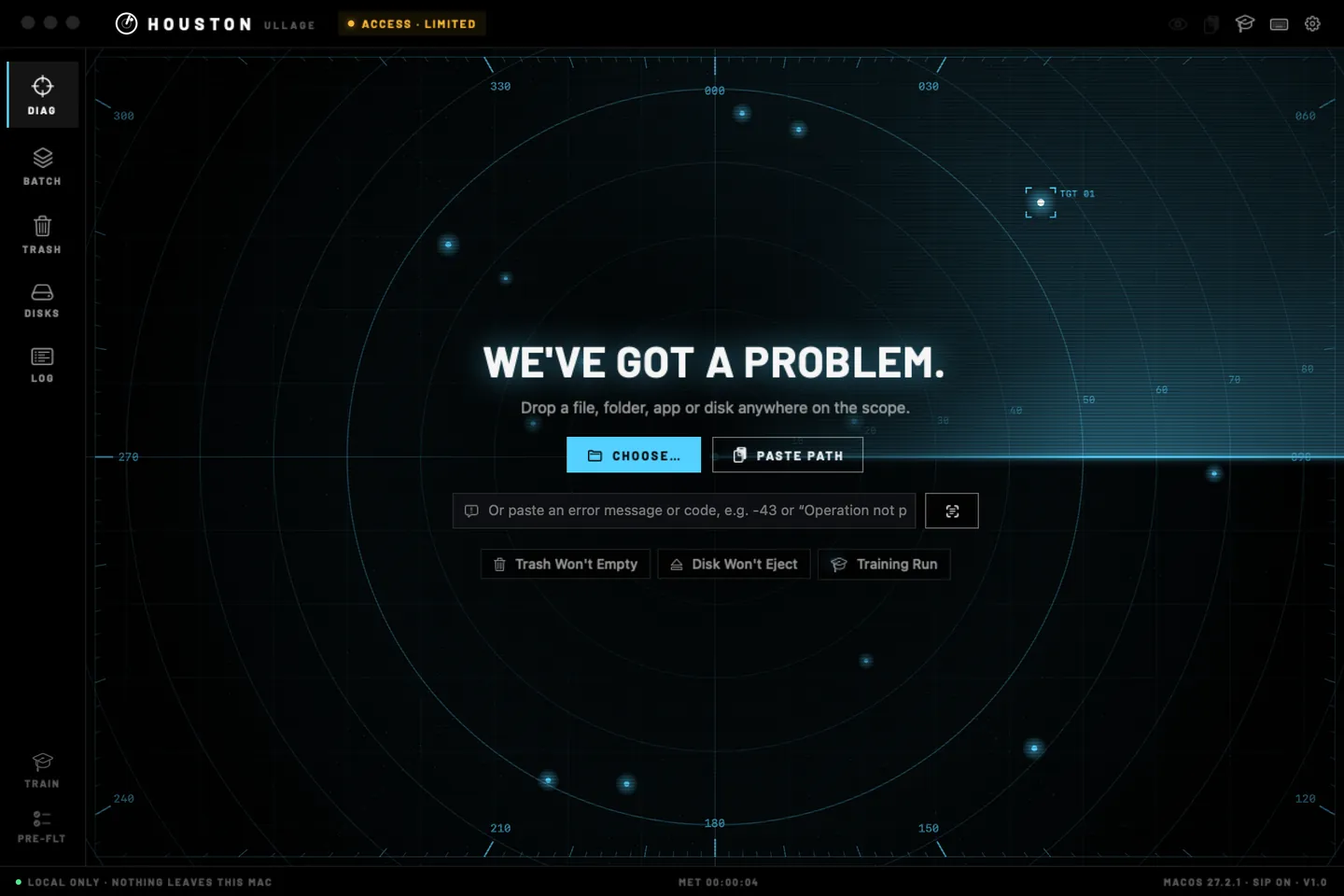
Houston,we’ve gota problem.
Can’t delete, move, rename, open or eject something on your Mac? Drop it on Houston. It finds the exact reason macOS is refusing (a lock, a permission, an app still using it) and fixes it safely, with a one-click undo.
No account. No analytics. Nothing leaves your Mac.
- RequiresmacOS 14+
- Built forApple silicon + Intel
- Every fixUndo · 30 days
- TrustSigned + notarised by Apple
Finder says no.Houston says why.
- 01Drop AnythingA file, folder, app or disk, anywhere on the window. Or press ⌘O, paste a path, use the menu bar, or right-click in Finder.
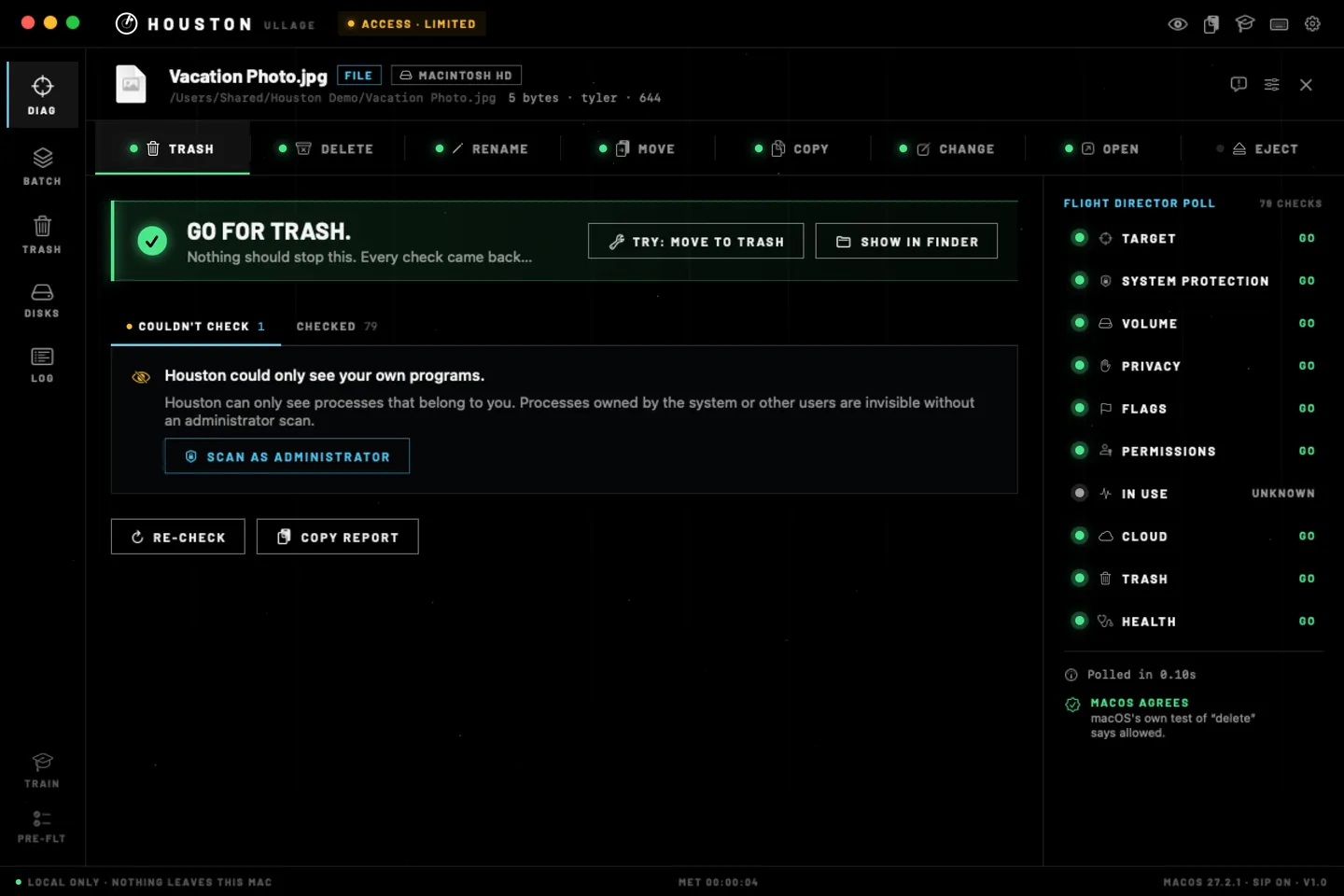
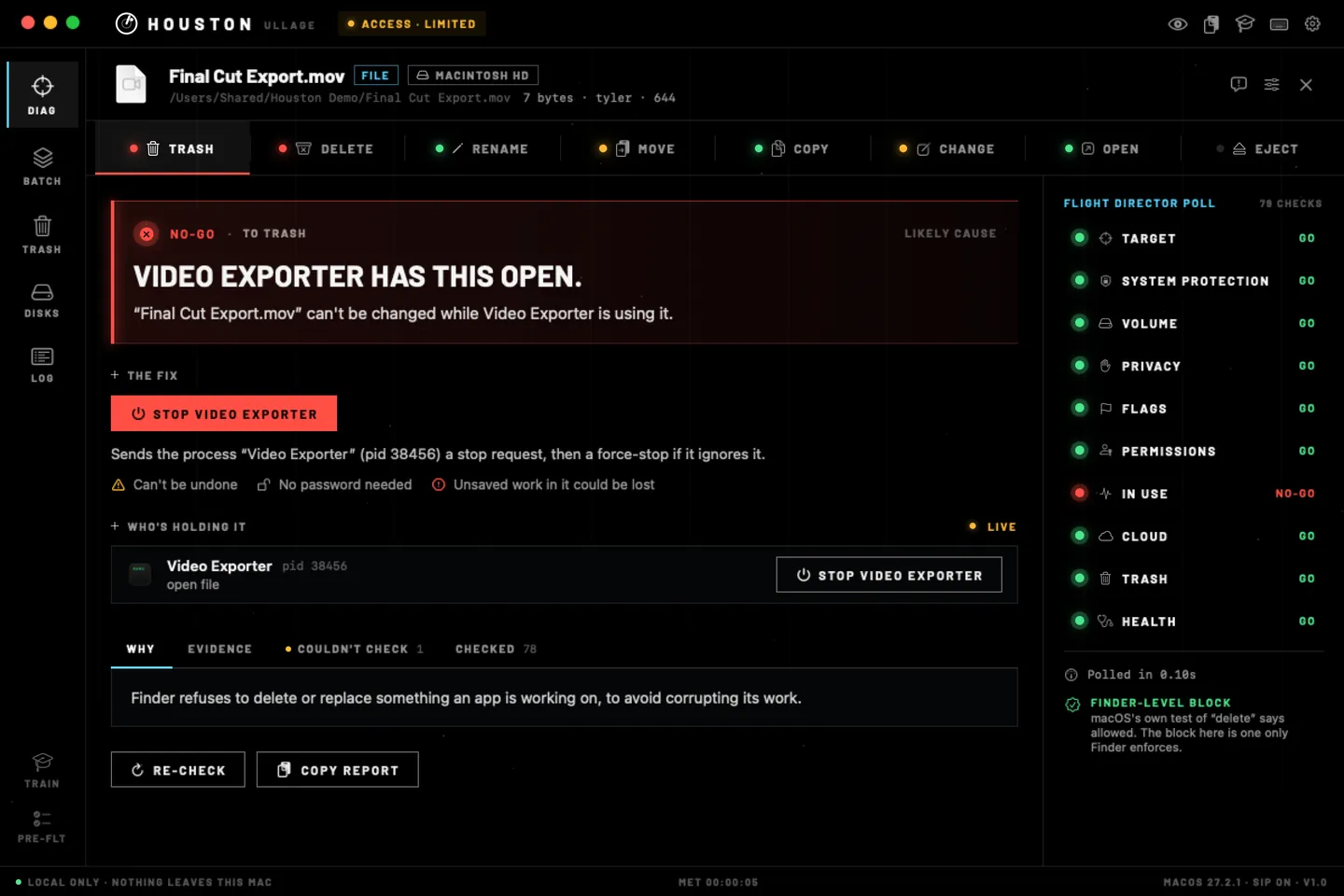
- 02Checks All OperationsEvery Finder operation runs through up to 110 checks across 12 layers of macOS. Each one comes back GO or NO-GO, with the exact reason and the fix.
- 03A One-Click Fix For What It FindsEvery issue that can be fixed comes with a one-click fix and the equivalent Terminal command. Fixes that can be undone are kept for 30 days.
- 04Polled In 0.10sEvery result shows how long the poll took, usually around 0.10s. Houston reads macOS directly, so you’re never waiting on a scan.
- 05By Design, Said HonestlyThe sealed system, SIP and data vaults are marked BY DESIGN and explained. Never a workaround.
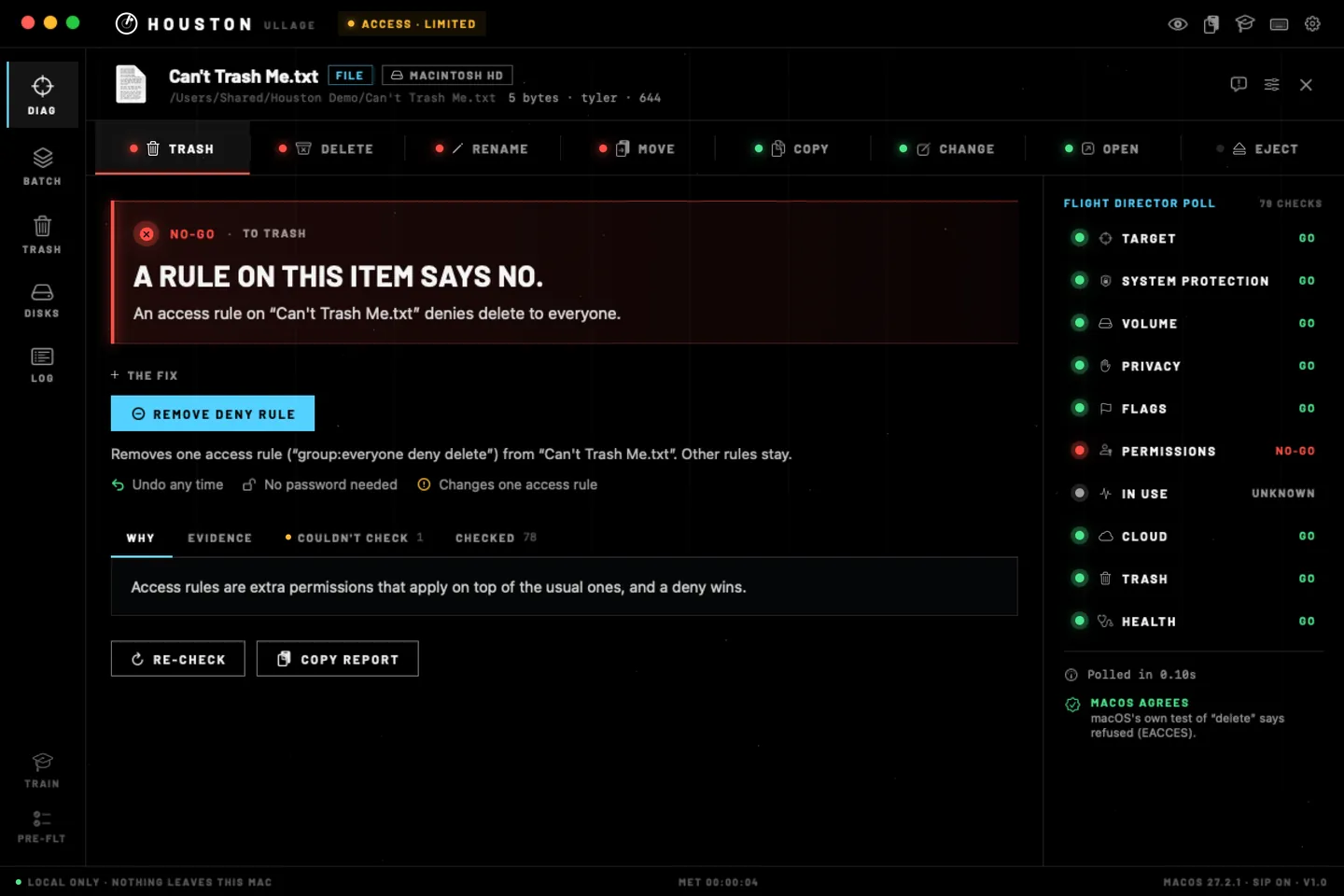
One button fixes it.
Houston never fixes anything blind. Before you confirm, you see exactly what changes, how to undo it and the Terminal command it will run.
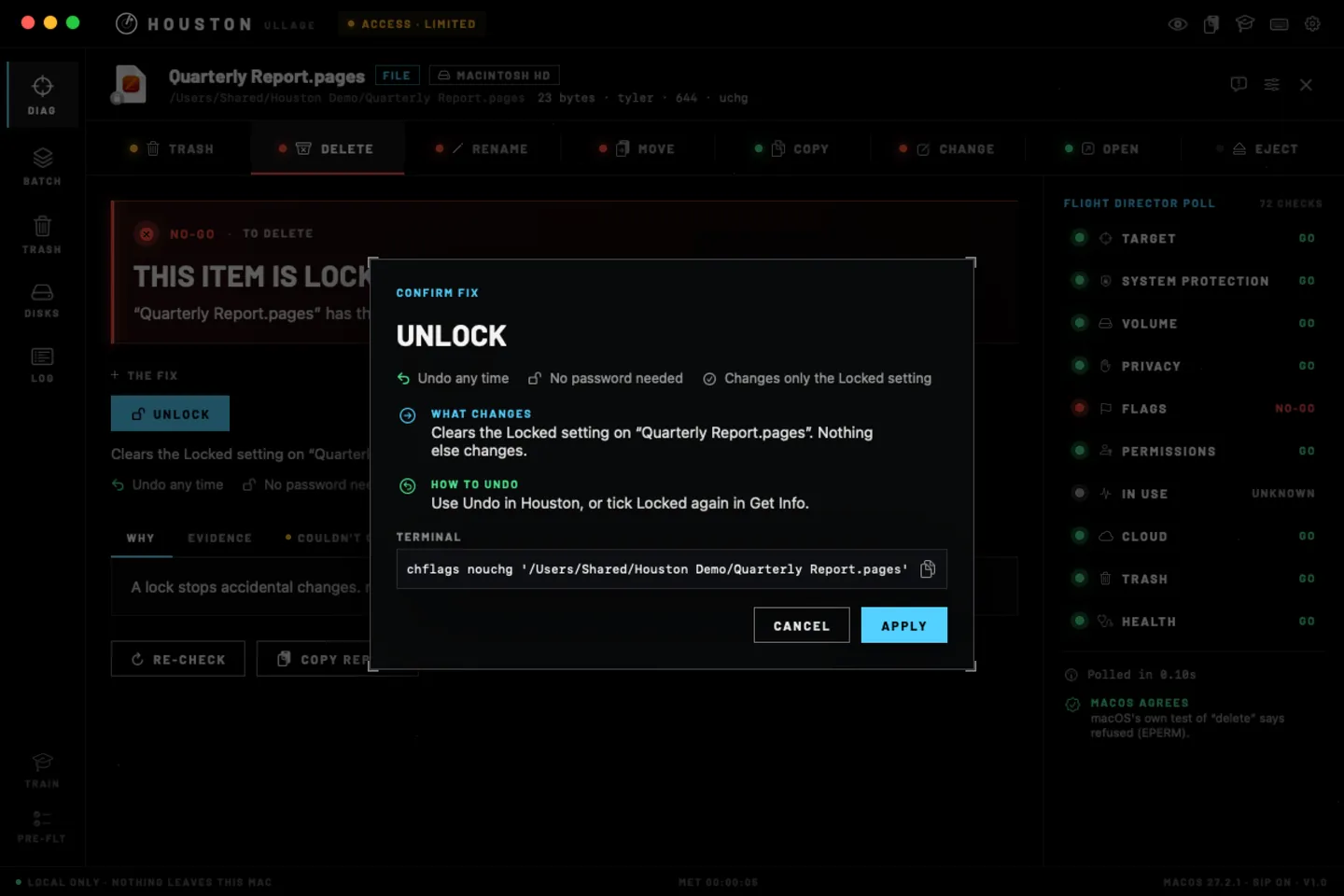
- 01A Fix For AnythingLocked, denied, owned by someone else, held open, stuck in the cloud: Houston has a fix for it.
- 02Explained FirstWhat will change, how to undo it, and the equivalent Terminal command, all shown before you confirm.
- 03Risky Is LabelledRisky fixes say so and ask you to confirm. Fixes that need your administrator password say so on the button, and macOS’s own sheet asks. Houston never sees it.
- 04Checks Again By ItselfAfter a fix, Houston re-checks and the light turns GO. Fixes that can’t be undone, like quitting an app, say so on the button.
Find what’s holding it.
Houston digs through system processes to find exactly what’s holding on to your item in real time.
Houston scans files and drives and lists the programs holding each one. For example, a video called Final Cut Export.mov is held open by Video Exporter, Preview and Cloud Sync.
- 01Process Level DetectionApps, helpers, indexers, an unfinished Finder copy: Houston traces every process with the file open and shows who it is, down to the process number.
- 02Knows The Hidden HoldersNot every holder is an app. Houston also finds background watchers, sync services and mounted disk images that quietly keep a file busy.
- 03Files, Folders, Whole DisksWorks for the file you can’t trash and for the drive that won’t eject: “why won’t this drive eject?”
- 04Scan As AdministratorSee processes owned by other users and the system. No helper tool is installed.
Every macOS error explained.
Paste any macOS alert or error code. Houston tells you what it actually means, then checks your item for the cause.
Houston decodes macOS error codes into plain English. For example, OSStatus −47, fBsyErr, means the file is busy because something is using it, so the In Use layer is checked first.
- 01Houston Has The AnswerHouston handles over 200 codes from Finder, POSIX, Cocoa, File Provider, LaunchServices, DiskArbitration and AFP. This page shows a few.
- 02Paste Anything-43, 100093, NSCocoaErrorDomain 513, EPERM, “Operation not permitted”. Straight or curly quotes, and any file name inside the message.
- 03Layered DiagnosticsEvery code runs through layers of macOS checks. Add the item it happened to and Houston checks it directly against the system.
- 04Explain-A-DialogGot an alert you don’t understand? Copy it with ⌘C and switch to Houston for decoding.
- 05Read AlertClick Read Alert and Houston reads the one on screen. That needs Accessibility, and Houston asks only when you click.
One drop from anywhere.
Right-click in Finder, drop on the menu bar or the Dock, or press a shortcut. Houston is already there.
- 01Right-Click, CheckSelect items, right-click, Quick Actions, Check with Houston. It’s in Finder’s preview pane and toolbar too.
- 02One Item Or ManyOne item opens in Diagnose. Several open in Batch Check.
- 03houston:// For ScriptsOpen a diagnosis from a script, a shortcut or any automation tool with a houston:// link.
- 04Starts With Your MacOpen At Login, and a Dock icon that’s there only when you want it. Houston is waiting in the menu bar.
Look before you move.
Name the destination or drop a folder on it, and Houston tells you what would fail before you waste your time.
- 01Permissions And LocksCan you add items to that folder at all? Houston checks the permissions and locks first, so you don’t find out halfway through.
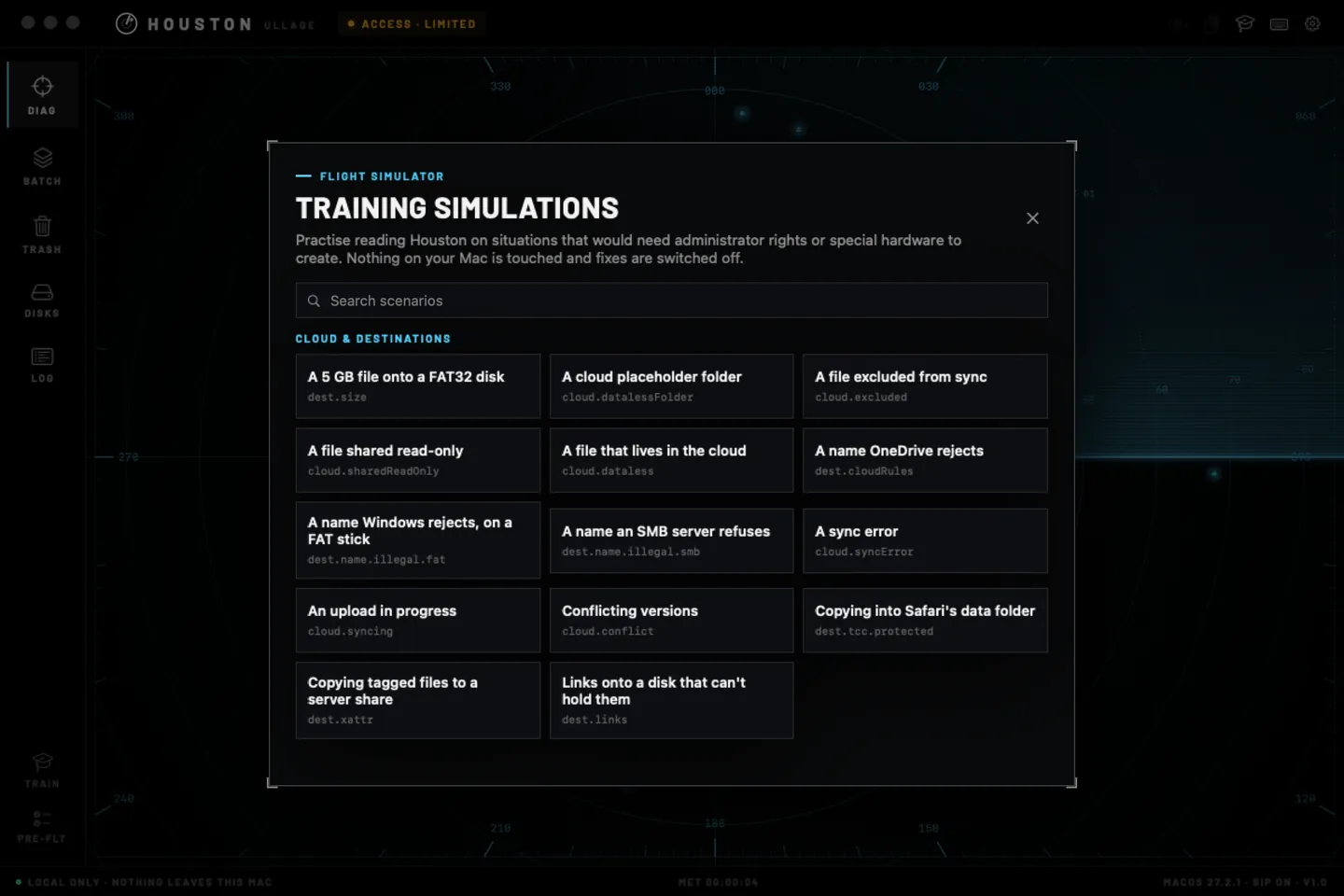
- 02Room, And LimitsA disk can have room and still refuse a file. FAT32 stops at 4 GB, however much space is free.
- 03Names That ClashToo long for the disk, rejected by another system, or already taken, even by a name that differs only in capitals.
- 04Disks Have RulesLinks, Finder’s extra data and cloud naming rules differ from one destination to the next. Houston checks the one you picked.
- 05Move Or Copy?Houston tells you which one it is. A move to another disk is really a copy, and a folder can’t move inside itself.
Batch check everything.
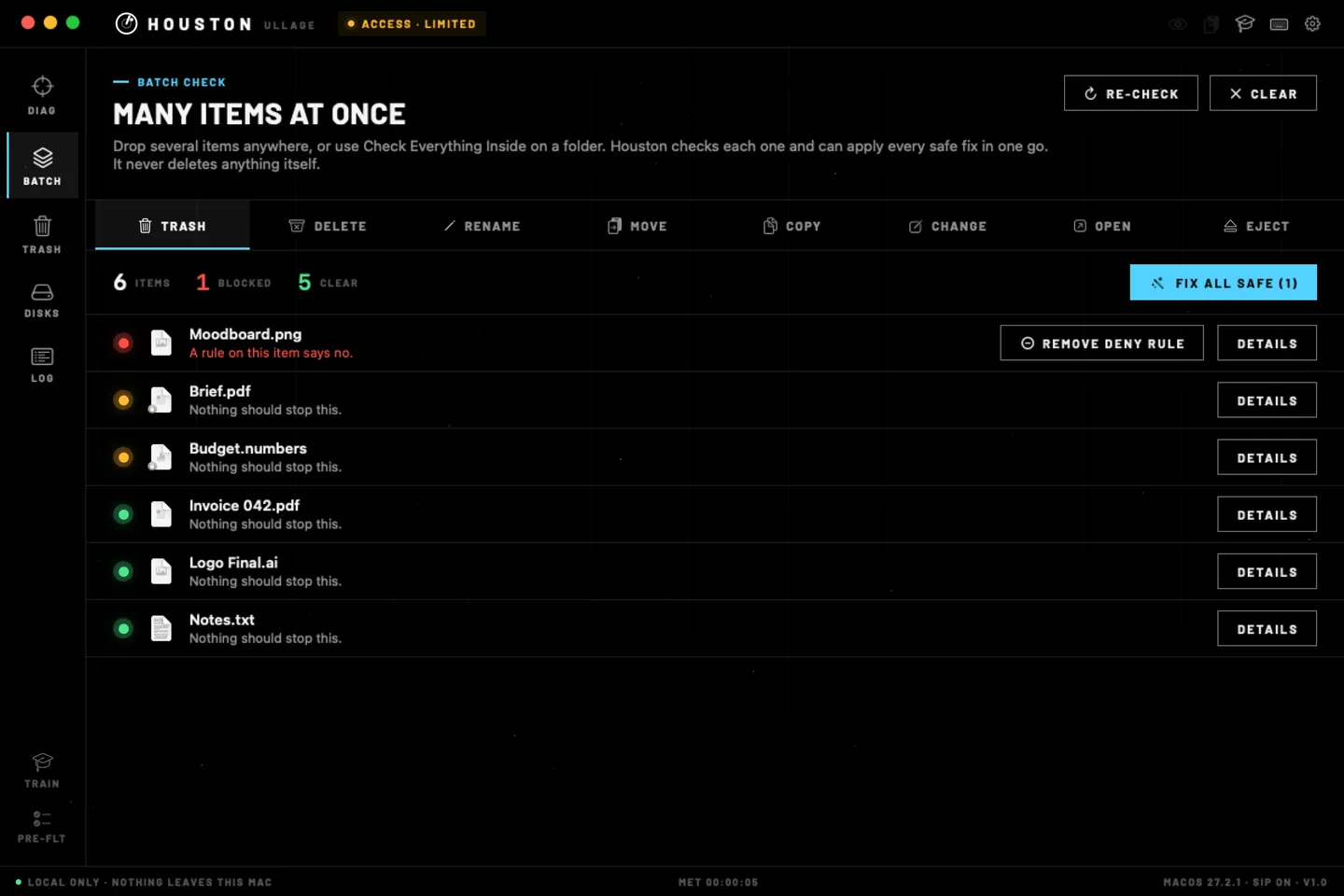
Stop finding out one failed item at a time. Houston checks the whole lot before you start.
- 01Drop AnythingDrop several items anywhere, or use Check Everything Inside on a folder. Houston checks each one.
- 02Eight ActionsTrash, Delete, Rename, Move, Copy, Change, Open and Eject, each with its own verdict for every item.
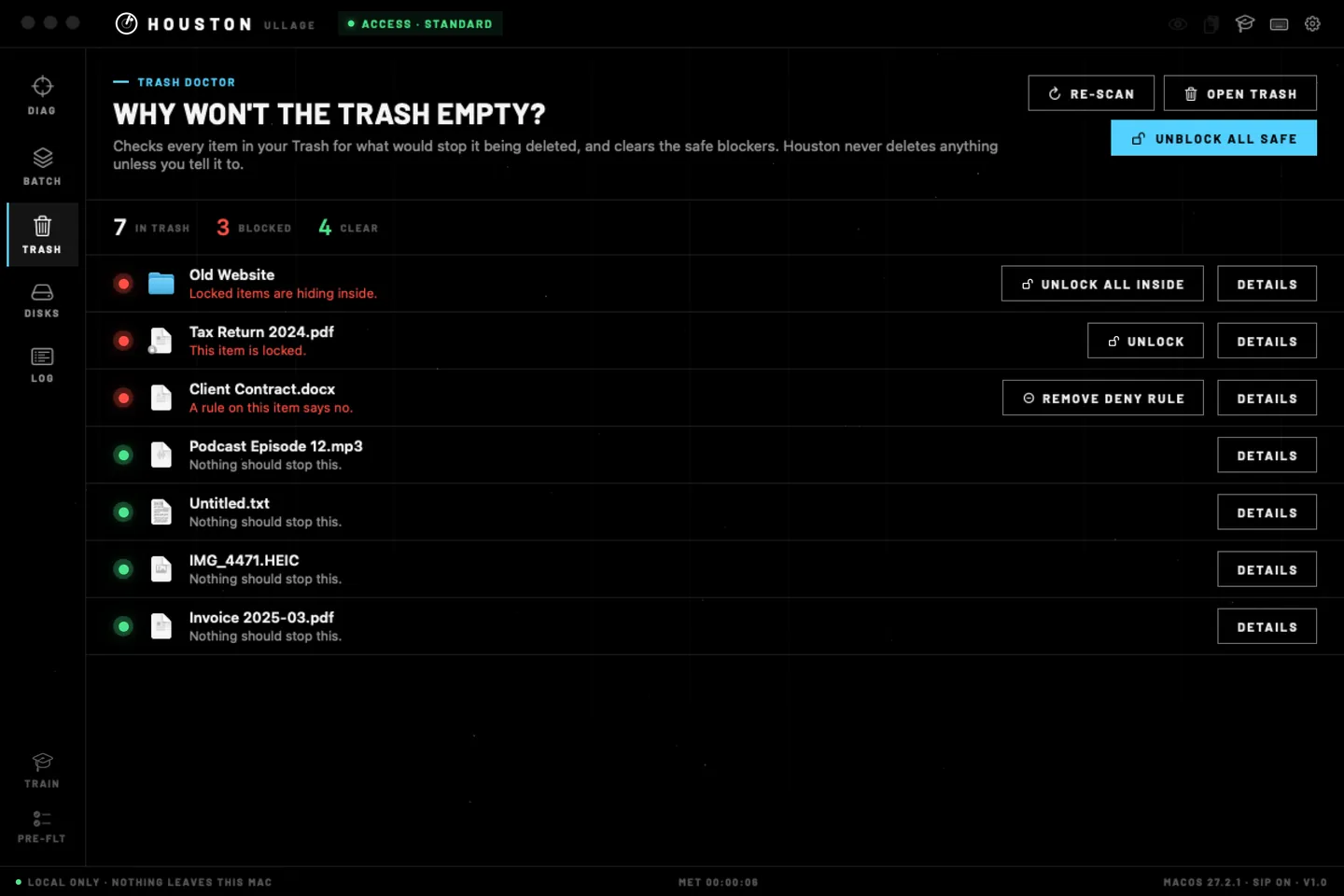
- 03Fix All SafeOne button fixes everything that’s safe, and every fix is recorded so you can undo it.
- 04Unblock, Then DeleteHouston fixes the reasons a file won’t delete, and you can trash it right there in the app.
- 05Big Folders, Fast AnswersScan and fix thousands of files before your first Google search.
Houston, up close.
See Houston for yourself.
Everything it knows, in Terminal.
The command line is built into the same app: no separate tool to install. Settings, Command Line, gives you a shell alias. --json for scripts.
alias houston='/Applications/Houston.app/Contents/MacOS/Houston'- 01Same Braindiagnose, explain, holders, fix and undo are the same engine as the app. Use a path, an error, or a whole volume.
- 02Dry Run First
fix --dry-runshows exactly what would change. Then run it for real, andundo --lastif you like.
- 0Nothing blocksNothing blocks it. Safe to go ahead.
- 1Blocked, fix availableBlocked, and Houston has a fix for it.
- 2Blocked by designProtected on purpose: no fix, no workaround.
- 3Blocked, cause not foundBlocked, but Houston couldn’t find the cause.
Nothing leaves your Mac.
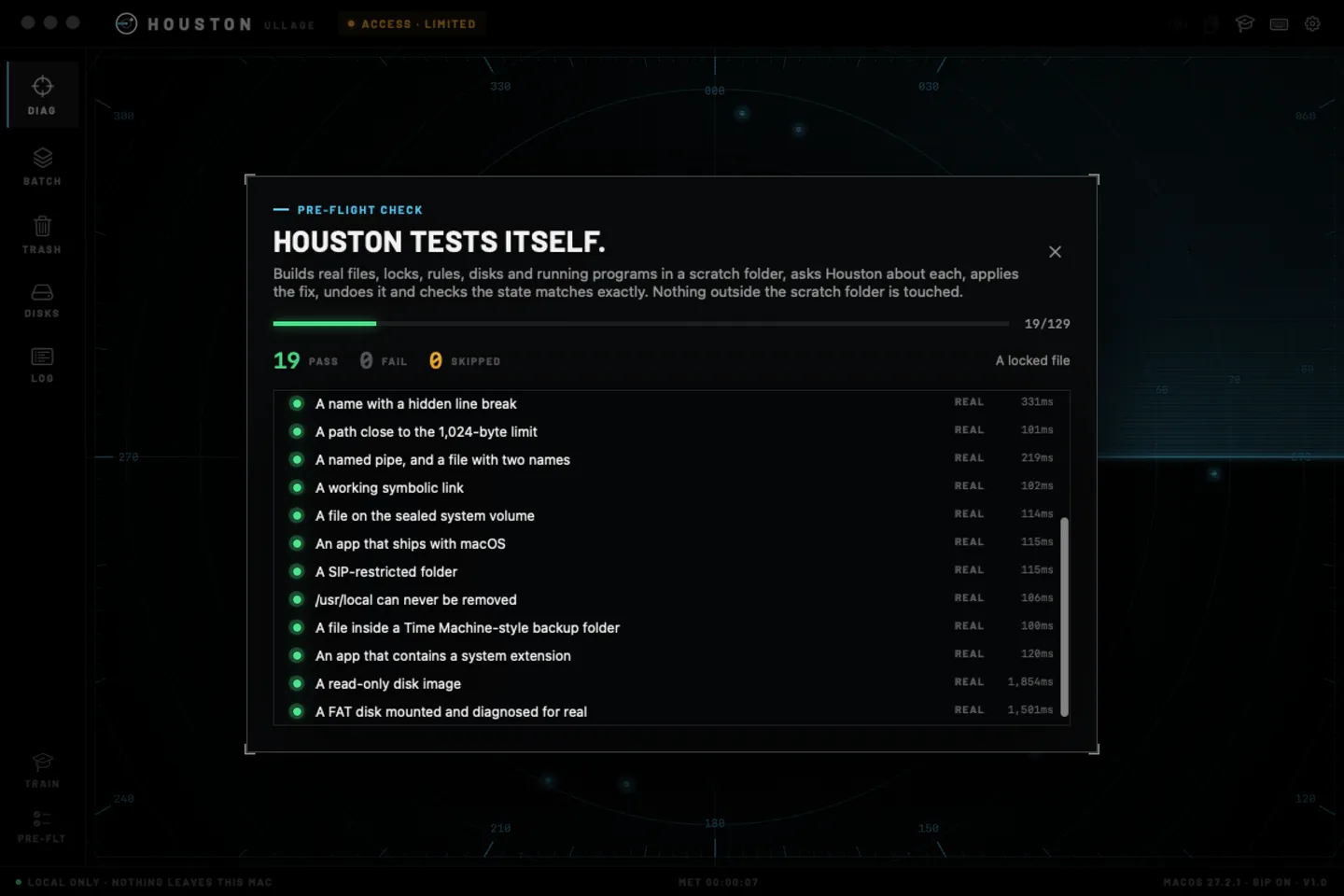
No accounts, no analytics, no helper tools. Every permission is optional, and Houston’s safety rules are tested, not just promised.
- +Full Disk Access
- +Accessibility
- +Administrator password
- −Screen Recording
- −Automation
- −Camera
- −Helper tools
Hover a line.
- 01Nothing Leaves Your MacNo accounts, no analytics. Copied reports never include file contents, and can hide your home folder name.
- 02An Optional Update CheckOne HTTPS request, at most once a day, that sends nothing about you or your Mac. Switch it off in Settings.
- 03Checking Changes NothingA diagnosis never writes to the item, never downloads a cloud file, never keeps it open and never triggers a permission prompt.
- 04Explain Before FixingEvery fix shows what it changes and how to undo it first. Fixes that need your password say so on the button.
- 05Your Mac’s Protection Stays OnHouston never disables, or advises disabling, System Integrity Protection, Gatekeeper or the sealed system volume.
- 06Fix, Then Your CallHouston clears the blockers. Trashing the file is a separate step that only you start. Administrator work is a closed list of typed requests, checked again with administrator rights, and ownership only ever goes to you.
Questions, answered.
Still wondering? Write to Support.
Does Houston delete my files?
Never by itself. Houston removes the blocker, such as a lock, an access rule or an app that has the file open. Whether the file then goes to the Trash is up to you. Every fix that can be undone is recorded for 30 days.
Is it safe to run the fixes?
Every fix shows what it changes, how to undo it and the equivalent Terminal command before anything happens. Risky fixes are labelled and ask you to confirm. Houston never disables, or advises disabling, System Integrity Protection, Gatekeeper or the sealed system volume.
Why isn’t Houston on the Mac App Store?
To see why a file is blocked it has to look at things other apps can’t, which the App Store sandbox doesn’t allow. Houston is signed with Developer ID and notarised by Apple, so it opens without warnings.
Do I have to give it Full Disk Access?
No. Every permission is optional. Houston works without any, and tells you what it couldn’t see, marked INCOMPLETE rather than “fine”. Full Disk Access lets it see inside protected places, chiefly the Trash. Houston lists itself in System Settings, switched off, so it’s one switch.
Does it phone home?
No accounts, no analytics, no crash reporter. The only network request is the optional update check: one HTTPS request, at most once a day, that sends nothing about you or your Mac. You can switch it off in Settings. Nothing installs without your click, and the download is checked against its published checksum first.
When does it need my administrator password?
Only for a few fixes (such as taking ownership, or clearing a system lock) and for Scan As Administrator. The button says so, and macOS’s own password sheet asks. Houston never sees or stores your password, and installs no helper tool.
What does it run on?
macOS 14 Sonoma or later, on Apple silicon and Intel Macs. It lives in the menu bar and the Dock, or only the menu bar if you prefer.
Why “Houston”?
“Houston, we’ve got a problem.” Houston is mission control for your Mac: it polls every layer that can refuse something, reports GO or NO-GO for each, and tells you which one is holding up the launch.
Final countdown/SEQ 13
Ask Houston.
Finder says no, Houston tells you why, and fixes it.
macOS 14+ · Apple silicon & Intel · Signed & notarised · English